How to Reset a Nest Thermostat: Step-by-Step Guide
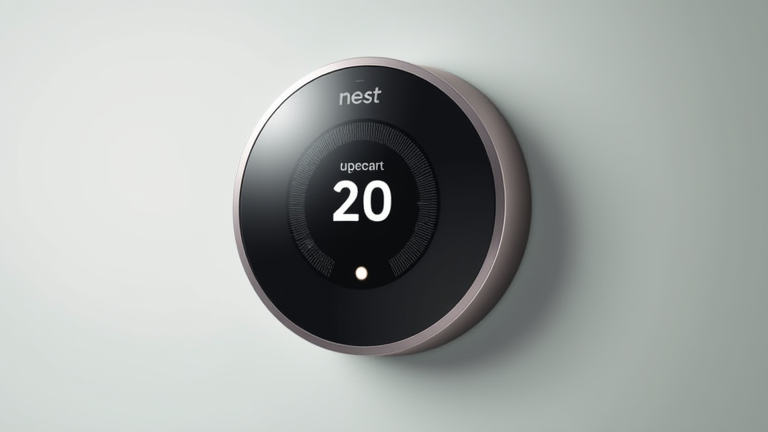
TL;DR: To reset a Nest Thermostat, navigate to Settings > Technical Details > Reset > Factory Reset from the touchscreen interface. Alternatively, you can perform a hard reset by removing the thermostat from its base plate and holding the two front buttons for ten seconds.
Why Reset Your Thermostat?
If you want to dig deeper, check out our guide on Top 5 Tech Trends in 2026 You Can’t Ignore.
Resetting your Nest Thermostat is often the first step in troubleshooting connectivity issues, screen glitches, or inaccurate temperature readings. It clears temporary software bugs without erasing your long-term energy history, allowing the device to start fresh. This process is essential when you are moving out of your home or selling the property, as it removes your personal account data and prepares the device for a new user. Understanding how to properly reset the unit ensures you maintain optimal control over your home’s climate while protecting your privacy.
Software Reset via Touchscreen
The most common method involves using the device’s interface. First, press the outer ring of your thermostat to wake the display. Tap the menu icon, usually represented by three lines or a gear symbol, to access the main settings. Scroll down and select “Settings” from the list. Within the settings menu, scroll further until you find “Technical Details.” This section contains diagnostic information and system controls. Tap on “Reset,” and you will see several options. Choose “Factory Reset” to proceed. The system will warn you that this action will erase your schedule and energy history. Confirm your choice by tapping “Reset” again. The device will restart, displaying the Nest logo as it reboots. Once the setup screen appears, your thermostat is ready for new configuration.
Hard Reset Using Physical Buttons
If the screen is unresponsive or frozen, a hard reset is necessary. Begin by gently pulling the thermostat faceplate off the wall-mounted base. Hold the device carefully to avoid damaging the wires. Locate the two small metal buttons on the front of the unit, near the bottom edge. Press and hold both buttons simultaneously for ten seconds. Release them only after the screen goes completely black. Wait for the Nest logo to appear, indicating the device is restarting. This method bypasses the software interface, forcing a complete system reboot. It is particularly useful when the touchscreen becomes unresponsive to touch inputs.
Tips for a Smooth Reset
Ensure your thermostat remains powered during the process. If using a hard reset, keep the device close to the base to prevent accidental wire disconnection. After resetting, reconnect to Wi-Fi immediately to sync with the Nest app. This ensures you can monitor energy usage and adjust settings remotely. Always back up important schedules before performing a factory reset, as this data cannot be recovered. Regular firmware updates can also prevent the need for frequent resets by fixing known bugs.
FAQ
Q: Will resetting my Nest Thermostat delete my energy history?
A: Yes, a factory reset will erase all your energy history, schedules, and location data from the device.
Q: How long does a Nest Thermostat reset take?
A: The reset process usually takes between three to five minutes, depending on the method used and network connectivity.
Q: Can I reset my Nest Thermostat without the app?
A: Yes, you can perform both software and hard resets directly from the thermostat’s touchscreen or physical buttons without needing the mobile app.